 |
| Image Credits go to Pixabay |
You may face a situation when you don't know the password for WordPress Dashboard or might have forgotten it. But if you have access to the database via phpmyadmin, you can reset password from there.
5 Tips to Create Strong & Easy to Remember Password
So let's begin :)
1) Simply open phpmyadmin.
2) On left side, there will be shown the names of databases.

Finding out your Database Name
- Go to the main directory of your site and open file called wp-config.php
- After opening that file, press CTRL+F and type "DB_Name" without quotes there. Then press Enter.
- You will see your database name just beside 'DB_Name'. For Example, my database name is parc.
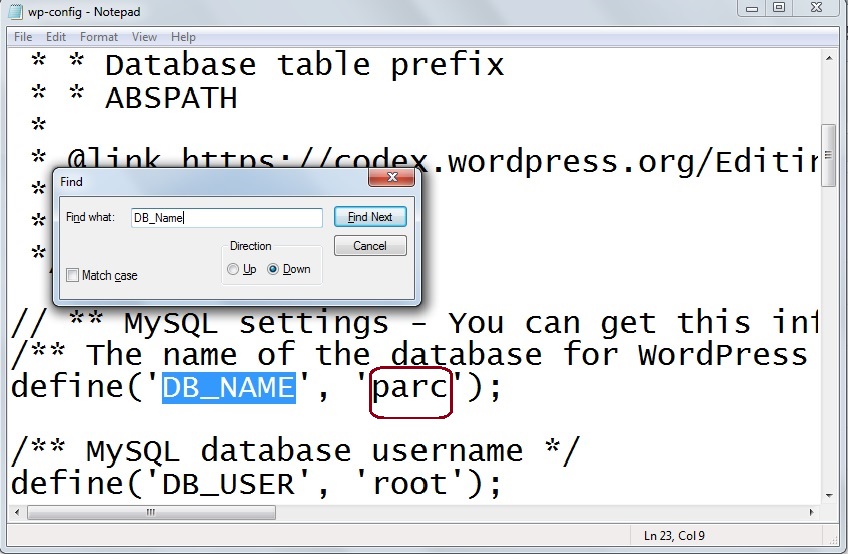
4) Alright, now lets come back after finding your database name. Select your database in phpmyadmin.


6) Now you will be seeing table names on the left side. Click on the table called wp_users. You will then see user names and their further details on the right side. Click on Edit, depending on which account's password you want to change. Right now, there are 3 people who are registered on my site. That's why it is showing me 3 user accounts.

7) After you clicked on Edit, you will see some kind of a form on next page. In the 3rd row, you will find user_pass field. In the same row, click on the drop down menu in Function column and select MD5. Just like shown in the below picture.

8) Now the last step is to simply enter your new password as shown in the below picture and click on Go button.

Congrats!!!, you changed your password.
Now you can go to the WordPress login page and login using your new password.
I have tried to keep this tutorial as simple as possible for you guys. Don't forget to like it or share it with your friends :)


