Showing posts with label Computer Tips. Show all posts

Friday, 5 April 2019

// // Leave a Comment

How to Visualize your Laptop's Harddisk Usage?


Some times you can not figure out which file/folder/program is occupying substantial amount of space on your laptop. To solve this problem, you can use a tool to visualize your hard disk usage. It will show you all the details, like which file is causing how much space and how much % of the disk is occupied by what kind of files? Images? Videos? Documents and so on.

The name of tool to achieve all this is Windows Directory Statistics. You just install it and scan the drive which you want to visualize. It will show you everything.

Here is a screenshot of this tool in use.


You can download Windows Directory Statistics(WinDirsStat) tool by clicking on the link given below.

WinDirStat Download Link
Read More

Thursday, 4 April 2019

// // Leave a Comment

How to Install Drivers on PM Haier Laptop or Any other?


When you install Windows, you often face the need of installing drivers from the scratch. The main hurdle you come across in doing so is that your laptop cannot run the internet after fresh window installation thus you can not search drivers from it. You have to download drivers from a different laptop and then copy it to the one on which you want to install.

Installing drivers when internet is not working on your laptop?


Solution

Answer to the above problem is quite simple. Just take any of your sibling or friend's laptop and go to this link. Here you can see 3 options to download DriverPack.


  • First one you should download if your laptop on which you want to install drivers already has the internet working on it.

  • Second option you should choose if your laptop can not run the Internet and you need to install the WiFi first. This file contains all the WiFi drivers required and then after installing it will search for other drivers automatically.

  • Third option contains all the driver no matter required by your laptop or not. It is quite big in size so i wont recommend to use this way.

Just click any of the above option that suits you, download it and run it your computer. For the rest, you know the drill :)
Read More

Sunday, 31 March 2019

// // Leave a Comment

2 Shortcut Keys Wish I Knew Earlier


Well it is never too late to learn anything. I will share these shortcut keys with you so you can save huge part of your time.

Switching to Desktop

So you have a lot of programs and windows opened and you just want to go to the desktop. For that you just press Windows key + D. It will take you to the desktop and to get back to where you were before, just press the same again. Amazing, Right?

Moving Cursor to Address Bar

Suppose you want to open something else in your browser. You can do it without moving your hands away from the keyboard. Just press Ctrl + L and write whatever website link you want to open.

Hope these 2 shortcut keys will multiply your efficiency. Dont forget to share it with your friends :)
Read More

Monday, 8 May 2017

// // Leave a Comment

Why there are 2 Ctrl, Shift and Alt Keys on every Keyboard?


Ever wondered why there are 2 Ctrl, Shift and Alt keys on your keyboard? Well because those keys are rarely used alone. Most of the time they are used in combination with other keys. Mainly as shortcut keys such as Alt + F4 for closing the window, Ctrl + C for copying, Ctrl + T to open a new tab and so on.

So Why 2 Ctrl, Alt and Shift Keys?

Try holding the left Ctrl key and then press P button with the same hand i.e Print Command. You will find it difficult or even impossible to do that unless you have abnormally large hands. If you have normal hands, you will HAVE to use your both hands.

Now times comes when your other hand is not free. Like when you are drinking a coffee or holding a cell phone in one hand. So in that case, the other Ctrl, Shift and Alt keys that exist on the right side of your keyboard help you out.

For Example
If your left hand is busy and you have to give a Print command. You can hold the right Ctrl key and press P button. Instead of waiting for your left hand to get free and use both hands to press Ctrl + P.

I hope you now know the purpose of  2 CTRL, ALT and SHIFT keys in every keyboard. Don't forget to ask your friends about it and share this post with them :)

Read More

Sunday, 7 May 2017

// // Leave a Comment

How to put Subtitles on a Movie in VLC Player?

First of all you will need subtitles file of that movie. If you don't know how to find subtitles for the movie. Just read this post. Alright, let's suppose you have the subtitles file now. Now follow the below steps:


Step 1

Play your movie in the VLC Player.

Step 2

Now when the movie is running. Click on Subtitle. As shown in the below picture.


Step 3

After that click on "Add Subtitle File".


Step 4

Then just select the subtitle file that you have downloaded and you are done :)


Feel free to ask if you have question :)

Soon I will be writing about how to fix the subtitles if they are not synchronized with the audio.

Read More

Saturday, 6 May 2017

// // Leave a Comment

How to Find Subtitles for Any Movie/Season?

Just follow the below steps. I have added screenshots for your convenience also.

Step 1

Just go to this site called SubScene and enter the movie name there. Hit Subtitle Search button.


Step 2

Select the movie name from the search results.


Step 3

You will be shown all the available subtitles along with their language name. Just select your desired subtitle.


Step 4

Hit that green download button on the next page.


It will start downloading. But note that the downloaded file will be zipped. So you will need to have any extracting tool. You may either use WinRAR or 7-zip for that.

Feel free to ask if you have any question or face any issue :)
Read More

Friday, 5 May 2017

// // Leave a Comment

How to easily Compress any Image/Picture?


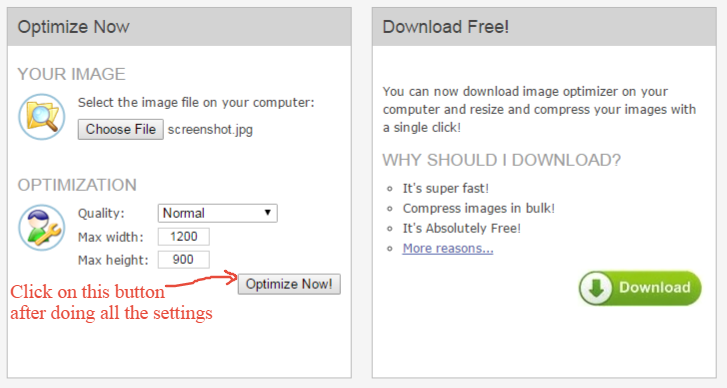
Don't worry if you are uploading any image online but it exceeds the maximum size limit. You no longer have to manually edit or scale down that image. Just simply go to this site called ImageOptimizer, upload your image and get it optimized. I have added the screenshots of the process below.

Screen Shots


Hope you liked this tutorial, feel free to ask if you have any question :)
Read More

Sunday, 27 November 2016

// // Leave a Comment

How to Quickly Minimize Everything and Switch to the Desktop?

 
Quite often, we feel the need of minimizing everything and switch to the desktop. I see people minimizing all the windows one by one in order to make their way clear to the desktop. It takes a lot of time. Instead, you can do it quickly with a shortcut key.

For Windows Users

Hold the Windows Key and press D. It will minimize all the currently opened programs and take you to the desktop. You may simple press again Windows Key + D to restore the previously opened programs.

For Linux Users

Hold the Super Key and press D. It will minimize the currently opened programs and switch to the desktop. But if you are using Ubuntu 13.10 or any later version, you will need to press Ctrl + Super Key + D .

For Mac Users

Simply press the F11 key if you are using the old versions of OS X. On a MacBook you will have to press
Fn Key + F11, as the F11 key alone is used to control the volume by default.

You can save yourself from getting caught by your boss or anyone else using the above shortcut key. Don't forget to share this with your friends or colleagues. I am sure it will be quite useful for them :)

Just click on the buttons given below. Thanks :)

Read More

Tuesday, 15 November 2016

// // Leave a Comment

How to Know MORE about your Computer?

You spend a lot of time in front of your computer. So what about finding out more about your computer?

Just follow the below Steps


Before following these steps, feel free to read this INSANELY USEFUL blog post

15 Shortcut Keys That Will Make Your Life 150% Easier


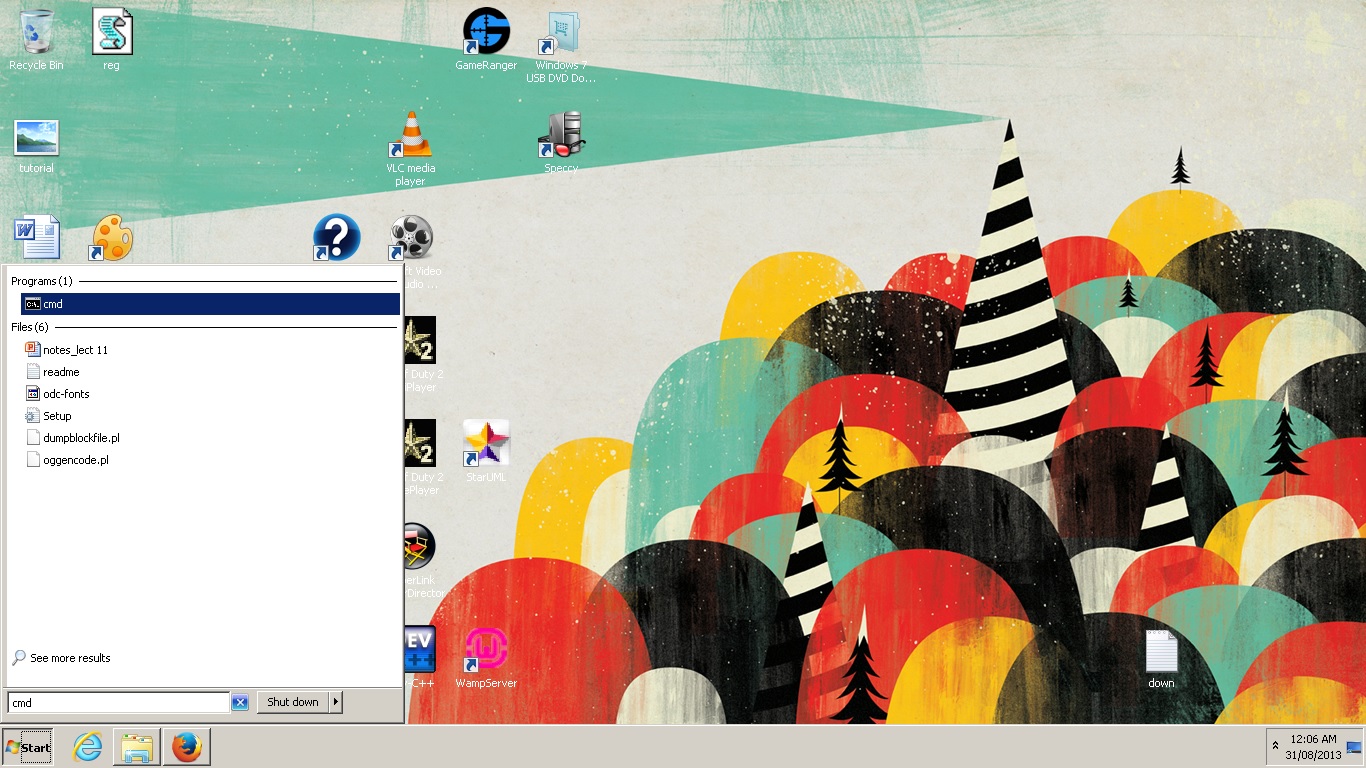
1) Open Start. You may do it by pressing Windows button on your keyboard.

2) Type cmd there.

3) Hit Enter. It will open the Command Prompt.


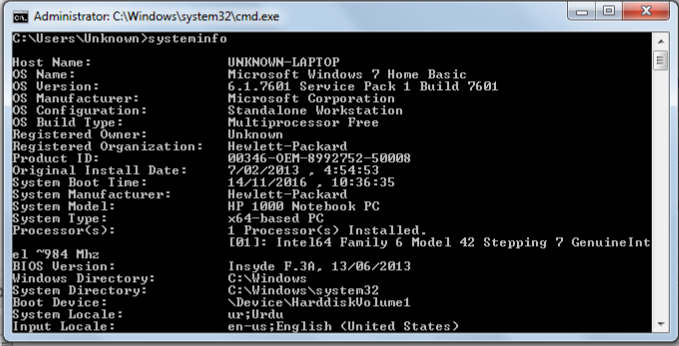
4) Type systeminfo there and hit enter. It will show almost everything about your computer.


It will tell you about your Operating System, Running time of your computer, Registered Owner, System Manufacturer and many other things. I am sure you won't be able to comprehend all that information in a single try :) 

Don't forget to click on below buttons in order to share this post with your friends :)

Read More

Thursday, 10 November 2016

// // Leave a Comment

15 Shortcut Keys That Will Make Your Life 150% Easier

Shortcut Keys to Make your Life Easier
Image Credits go to Pixabay

Isn't it annoying to repeatedly move your hand toward the mouse or mouse pad just to get simple things done. That's where Shortcut keys come to rescue. They are really helpful when it comes to boosting your productivity, making things easier and saving time. Feel free to take a look at this Awesomely written post before we head up to the Shortcut Keys :

 7 Time-Saving Tips When Working On Computer


Ctrl+Shift+T: To Open the Recently Closed tab

Ctrl+Shift+N: To Open the Recently Closed Window

Ctrl+L: To Move your Cursor to the Address Bar 

Ctrl+T: To Open New tab

Alt+Home: To Open the Homepage (Default Homepage that you have chosen in the settings) 

Ctrl+W: To Close the Current Tab

Ctrl+H: To View your Browser History

Ctrl+Z: To Undo the last Action you Did

Ctrl+Y: To Redo what you just Undid. In other words, undoing the undo.

Ctrl+Shift+Esc: To open the Task Manager without opening the Logon Screen

Ctrl+Tab: To Navigate through the Tabs

Home Key: To move your cursor to the start of current line. 

End Key: To move your cursor to the end of current line.

Ctrl+Home Key: To move your cursor to the start of currently opened Document. 

Ctrl+End Key: To move your cursor to the end of currently opened Document.
---------------------------------------------------------------------------------

Feel free to share this post with your friends, colleagues and other people by clicking on below buttons.

Read More

Tuesday, 1 November 2016

// // 1 comment

Learn these 2 Shortcut Keys to Sky-Rocket your Productivity


Computers have become a significant part of our lives but, how can we get the most out of them? and within lesser time? Well I know 2 simple shortcut keys that will help you achieve it. You can use these shortcut keys while writing content, chating with a friend, browsing internet or going through your data files etc.

Move to the Very Beginning


There is a Home key in your keyboard. You can use it to move to the very beginning of any sentence, page, file, post etc. 

For Example
Suppose you are writing and you forgot to capitalize the first letter or you want to add something in the beginning of that line. Just press the Home key once and your cursor will be taken to that place, instead of holding the left arrow key for few seconds or using your mouse.

Similarly if you want to move your cursor to the beginning of document not just the sentence, you can do it by pressing Ctrl + Home. It will boost your productivity and save tons of your time.

Not only that, you can use Home key to get to the top of any webpage, select the first file/folder in the directory, move to the previous page while reading pdf file etc.

Similarly.....

Move to the Very End


You can get to the very end of anything by pressing End key. Rest of the details are same as mentioned above, I won't waste your time here.

Note

Don't forget to share this post on social media. It will take you only few seconds but you will save MINUTES of other people by doing so. Just click on the buttons given below to share.

Image Credits goes to Forbes
Read More

Saturday, 30 July 2016

// // Leave a Comment

Easiest Way to Print Your Screen and Share it with Anyone Online


Are you tired of pasting your print screenshot in MS Paint, cropping & selecting your concerned area, upload it on any free image uploading site and then sending the link to concerned person? It takes you like forever, doesn't it?

Well I know a better and quite simple way to share your screenshot with anyone online. Lets find out:

There is a free online tool available known  as Snaggy that will do everything for you. Also you don't need to download it.

How to Use It


1) Simply press Print Screen button on your Keyboard.

2) Go to Snaggy's website.

3) Press Ctrl+V there and you are done.

It will automatically generate a link for you that you can send to anyone in order to share the screenshot.

You can also crop, edit or write any text  on the screenshot using that tool before you share the link to someone. Congrats!!! Life is much Easier now :)

Image Credits go to UberGizmo
Read More

Tuesday, 5 July 2016

// // Leave a Comment

How to Skip the Logon Screen When Opening Task Manager?

Tired of this Logon Screen? that pops up whenever you try to open Task Manager.


 Well I have a solution for that :)

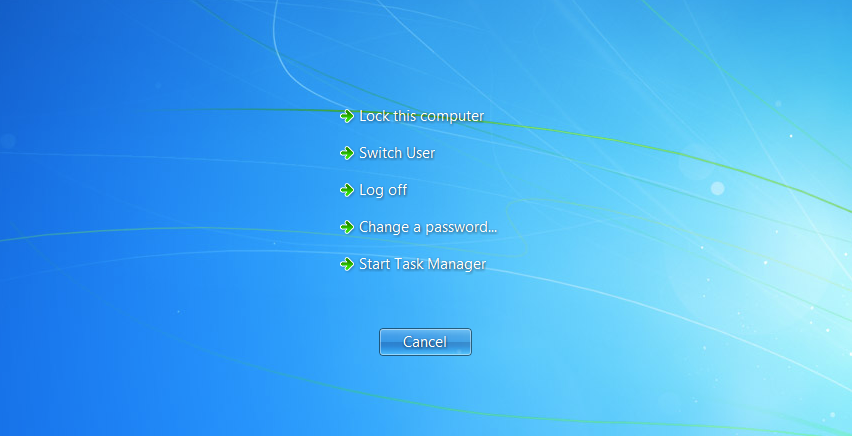
Instead of pressing Ctrl+Alt+Delete, press Ctrl+Shift+Escape and it will open the Task Manager right away. It will save your time :)


Don't forget it to share it, so other people can save their 1 second too :)

Image Credit goes to Techspot
Read More

Sunday, 3 July 2016

// // 1 comment

5 Free Software that You Should Must Have

You would have heard this phrase already "Nothing is Free in this World", well it is not entirely true. There are 5 dashingly awesome softwares that are 100% free and also their applications are never ending. Let me list them below one by one:


Recuva


Accidentally deleted an important file? Lost files after a computer crash? No problem - Recuva recovers files from your Windows computer, recycle bin, digital camera card, or MP3 player!

You can download it from here. 

7-Zip


It is a file archiver with a high compression ratio. You can use it to transform your files & data into a zip or rar file.
You can download it from here.


GIMP


It is an image manipulation tool that can be used to design logos, make banners, edit pictures and perform other graphical jobs.
You can download it from here.

VLC Player


It is a free and open source cross-platform multimedia player and framework that plays most multimedia files as well as DVDs, Audio CDs, VCDs, and various streaming protocols. 

You can download it from here. 


CCleaner


It is the number-one tool for cleaning your PC. It protects your privacy and makes your computer faster and more secure!. Not just that, you can also remove the duplicate files from your computer using this tool.

You can download it from here.
Read More

Saturday, 2 July 2016

// // Leave a Comment

Simple Trick to Reduce the CPU Usage of Your Computer

Usually we just shutdown the background processes to reduce the CPU Usage of our computer. But you may do the same using one simple trick and without closing any program.

Step 1

Open Start, or just press the Windows button on your keyboard.

Step 2

Type services.msc and hit enter. As shown in the below picture.


Step 3

A new window will open, showing various services. Now from them, find this service Windows Management Instrumentation.

Step 4

After finding and selecting the above mentioned service, click on Restart from the left column of the Window. As shown in the below picture.


Step 5

It will prompt you to select Yes or No. Just click on Yes and you are all done.

Almost Done
Now open the task manager by pressing Ctrl+Shift+Escape. Click on Performance tab and you will notice the reasonable amount of decrease in CPU Usage. As shown in the below picture.


NOTE
You can take care of the overheating problem using the same technique. If you have any other issue or problem, feel free to tell me in the comments section below. Would love to find a solution for you :)
Read More

Thursday, 12 September 2013

// // 2 comments

Installing Windows 7 From USB

So your computer has neither CD-ROM nor DVD-ROM, or they just do not work properly and you want to install Windows 7 on your computer.So I have a solution for your problem.

You can install Windows 7 using USB.So lets get down to work and start doing our job.

How To Install Windows 7 From USB?

To do this,first thing you will need is a tool named as Windows 7 USB DVD Download Tool.
Download it from Here

Other thing is Iso image of Windows 7 setup.You can search it on torrent sites, you will easily find it or you can make Iso image of windows 7 DVD using Power iso.You can download that program from Here

So if you have both things:
  • Windows 7 USB DVD Download Tool

  • Windows 7 Iso image. 

Power Iso
 We can move forward.

Open your Windows 7 USB DVD Download Tool.

Click on browse and select the Windows 7 Iso Image.
Installing Windows 7 From USB

Click on next,it will ask you whether you want to make your USB Bootable or DVD?Click on USB and it will start doing its job.

After couple of moments it will finish its job.Now restart the computer and press F8 when your computer is starting.It will take you to the bios settings,from there navigate to Boot settings TAB.

Go to the priority order and Choose Boot From USB.

Save and Exit the Bios Menu.It will restart computer and move you to the Windows 7 Setup.
Read More

Tuesday, 3 September 2013

// // Leave a Comment

How to change the color of text and background in MS-DOS?

Are you tired of old default color scheme of ms-dos?

Gladly you can change it according to your mood.

How To Change The Color in MS-DOS?


First of all open up MS-DOS,by typing cmd in START.

Now type there color 2 and hit enter.It will change the text color to green.Similarly you can type different numbers from 0 to 9 to set different colours.

To use mixed colors,there are pre-defined Alphabets like if you type color A,it will change the text color to Light Green,Similarly if you write color B,it will change the color of text to Light Aqua.

You can get a whole list of options about color by typing color/?

ms-dos color /?


I hope you liked the post.


Stay Tuned for more...

Read More

Monday, 2 September 2013

// // Leave a Comment

How to Enable Layers-Brushes Box in Gimp?

So accidently you closed the layers-brushes box and now whenever you open up Gimp,you don't see that box.

How To Make Layers-Brushes Visible?


First of all Open Up Gimp.

Create New Layer.

Click on Windows Tab,move your cursor to Recently Closed Docks,from there click on layers,Channels etc
For Example

How To Make Layers-Brushes Visible?

Congrajulations your layers-brushes box is back.

Demonstration


Read More

Saturday, 31 August 2013

// // Leave a Comment

Windows Hidden Malicious Software Removal Tool

Windows has many secret tools and programs.Today I am going to introduce one of them to you guys.
Its full name is Microsoft Windows Malicious Software Removal Tool.As you can see it is a malicious softwares removal tool but you can not it is not a replacement of Anti-Virus keep that thing in mind.

Microsoft Windows Malicious Software Removal Tool

It is prevalent malicious software removal tool.You will be thinking what is prevalent and what is the difference between malicious softwares and prevalent malicious software?So here is the answer,prevalent malicious softwares are those softwares that are found commonly in Windows Computers.So you don't need to download or purchase any Anti-Virus just for the sake of removing those malicious software.To remove those old and frequently found malicious softwares,windows has built in tool which we are talking about.Yes the Microsoft Windows Malicious Software Removal Tool.

How To Run Windows Malicious Software Removal Tool?


You can run it by going to start.Type mrt there,hit enter and it will open the tool.
Microsoft Windows Malicious Software Removal Tool

After Pressing Enter You will see this Window.
Microsoft Windows Malicious Software Removal Tool

After choosing whatever type of scan you want.It will start scanning and in the end,you will see this window.
Microsoft Windows Malicious Software Removal Tool


Warning 

This tool is not a replacement for Anti-Virus.It is good when you can't buy or trust any available Anti-Virus.As it is built in,you don't need to install it or download it.You don't any internet connection for it.This tool is old and it is suitable to get rid of old and common malicious software tools.So I would advise you to also install any good Anti-Virus Program to get rid of new malicious softwares and viruses.

I hope you liked the post,there are many other hidden and interesting tools in Windows,I will post about them too on my blog,So stay tuned.
Read More

Friday, 30 August 2013

// // Leave a Comment

How to see the hidden files and folders in USB?

Many of the times,you plug in the USB and find it empty.While on the other hand when you check its properties,it shows that USB is half used by some data.

So how to See that hidden data?
First of all plug in the USB.

Go to Start,type cmd and hit enter.

 command prompt


 It will open up the command prompt.


command prompt


Go to your USB drive and see what its label name is.It can be f:,g: or maybe h: . You just check it,by going to the Computer.


How to see the hidden files and folders in USB?


Now after seeing that go to Command Prompt and type the lable name of your USB drive.

For Example in my case it is g: .So I will type there g: and hit enter.It will take me to the usb drive.


 Now type the below code and hit enter.

attrib -s -h /s /d 


How to see the hidden files and folders in USB?


Now go to your USB and play with your Data,it would no longer be hidden.

Read More